Mindray BS120
This documentation covers the end-to-end process of BS120 integration, from installation and
configuration of necessary software to testing and troubleshooting.
Prerequisites
Ensure the following requirements are met before proceeding with the integration:
• Node.js: Version 12 or later must be installed.
• npm: Verify that npm is installed and up to date (Run npm –version in the command prompt).
• Internet connection: Required for installing dependencies (Use USB tethering with Smart
phone or ethernet using a Wi-Fi router).router.
Cloning and Setting Up the Driver
- Clone the BS120-CSV driver from GitHub using this link
https://github.com/HISMalawi/mlab_drivers.git2.MLAB Drivers - Move the BS120-CSV folder in the cloned folder to C:// on the computer running the BS120
software.3.software - Open Command Prompt (cmd) and navigate to the driver folder: cd C:/BS120-CSV
4. - Install the required dependencies: npm install
5. - Run the application to verify installation: node app.
js
js. If the driver is running correctly, you will see a confirmation message.6. - Stop the application and proceed with the necessary configurations.
Configuring the Driver
1. Open the configuration file: C:/BS120-CSV/config/settings.json
2. Modify the following settings as needed:
a. IP Address
b. Admin Username (lisUser)
c. Admin Password (lisPassword)
Exporting Results from BS120 Software
1. Open the BS120 software.
2. Navigate to Results and History.
3. Click the Export button on the right side.
4. Set the export path to: C:/BS120-CSV/outputs
5. Save the exported results.
6. Open File Manager and verify that a CSV file has been generated in the outputs folder.
Verifying Data Logging
1. Run the driver again: node app.js
2. Export results again from the BS120 software.
3. Check the logs to confirm data is being processed.
4. If logs are displaying correctly, proceed with the next step.
Setting Up Automatic Execution with PM2
1. Install PM2 globally: npm i -g pm2
2. Start the driver with PM2: pm2 start app.js --name="BS120"
3. Install PM2 Windows Startup (Requires internet connection): npm install pm2-windowsstartup -g
4. Set up PM2 startup service: pm2-startup install
5. Save the PM2 process list: pm2 save
Mapping
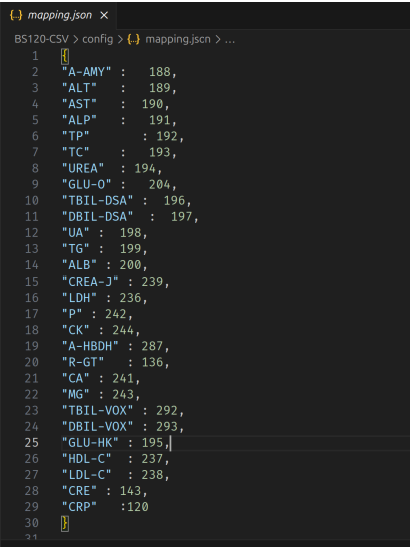
The test measure IDs for Renal Function, Liver Function, and Electrolytes are mapped in the
configuration file:
C:/BS120-CSV/config/mapping.json
The mapping structure follows this format: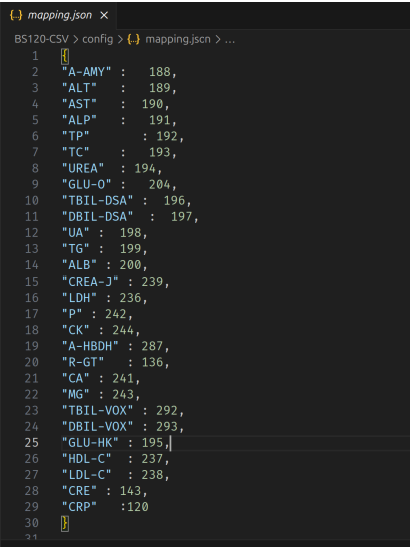
Each name corresponds to the test name from the BS120 software, and the number represents the
measure-mapping-id in IBLIS.
How to Find the Mapping Name?
All test identifiers (names) in the mapping file must be derived directly from the BS120 software,
specifically from the SAMPLE REQUEST section used by laboratory technologists (ask the ones in
the laboratory if necessary) during test registration.
Critical Guidelines
1. Maintain exact nomenclature as displayed in the BS120 software
2. Preserve all formatting, capitalization, and special characters
3. Do not standardize or "correct" abbreviated test names for instance in case of Creatine;
CREA-S, CREA-J, CREA, or CREA-SOX (as specified in BS120).
This precision ensures system integrity and prevents potential misidentification of laboratory tests
throughout the workflow process.
How to Find the Mapping
1. Open IBLIS and navigate to the test you want to map. In the example below, it’s liverID?
ID
function tests.
2. Click Enter Results or Edit on a relevant test (e.g., a Liver Function test).
3. Right-click to inspect the HTML element of the measure input field.
4. Hover over the input field, and the measure-mapping-id will be displayed.
For this example, ALPU has an id of 309.
5. Copy the ID and update the corresponding test in mapping.json. If not found, add another
entry.
6. Repeat the process for all required tests.
7. Save the changes and restart the PM2 process: pm2 restart BS120
Final Testing
1. Export results that include an accession number (tests where the barcode was scanned
using the small label from IBLIS reception).
2. Verify that the results are correctly fetched in IBLIS by checking corresponding tests
bearing the same accession number.
Troubleshooting
If results are still not being fetched correctly, follow these steps:
1. Check the CSV Export
a. Verify that the exported CSV file exists in C:/BS120-CSV/outputs.
b. Open the file to ensure it contains valid data.
c. If the file is missing, repeat the export process from the BS120 software.
2. Verify Node.js and npm Versions
a. Run the following commands: node -v
npm -v
b. Ensure Node.js is version 12 or later and npm is up to date.
3. Check the Logs
a. Run the driver manually: node app.js
b. Observe the console output for any error messages.
4. Confirm Mapping Configuration
a. Open C:/BS120-CSV/config/mapping.json and verify that the test names and IDs
are correctly mapped.
b. Ensure that the measure-mapping-id matches the corresponding test in IBLIS.
5. Restart PM2 Process
a. Run: pm2 restart BS120
b. Check if the process starts successfully.
6. Inspect Network and IP Configuration
a. Ensure the correct IP address is set in settings.json.
b. Verify that the BS120 machine and the computer running the driver are on the same
network.
7. Check PM2 Logs
a. Run: pm2 logs BS120
b. Look for any error messages related to connectivity or data processing.
8. Verify Network Connectivity
Make sure the computer can ping the Ip address of the server where IBLIS is running. This
can be done by opening command prompt (cmd) and typing ping [IP_ADDRESS]
If the issue persists, recheck all configurations or for further assistance open an issue on the EMR
Helpdesk.